|
<< Click to Display Table of Contents >> Navigation: Using PoreXpert > Initialisation > Sampling Page > Channel porosity |
Having opened an experimental datafile using the Sampling page, you may now decide to input the Channel porosity rather than the Open porosity. As previously stated on the Sampling page, this is the porosity visible from an electron micrograph of the surface, as a channel passing through the sample. It will normally be less than the Open porosity, because if pores within the matrix of the porous material are larger than the throats connecting them to the surface, some or most of their volume will be concealed in a micrograph of the surface.
In the example case of the IG110 graphite shown below, the Open porosity is nominally 12.59%, but say we have measured the channel porosity from image analysis of an electron micrograph as 2.67%. Click on the small down-arrow next to Advanced, and scroll down the Advanced sub-screen until you see the relevant details. Enter the value of the channel porosity as shown:
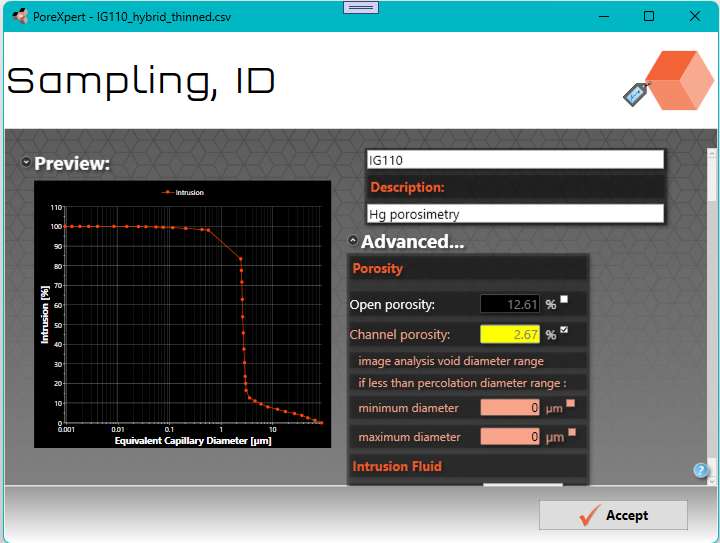
Figure CP 1
On entering the channel porosity, the image analysis cylindrical equivalent void diameter range is displayed in grey-background number boxes, as shown above. The cylindrical-equivalent diameter d is related to the surface-visible area of a pore measured by image analysis as d = √(4 x area / π ) . To use the default values, i.e. the whole range of sizes, just click the Accept button.
However, it is very often impossible to carry out image analysis over the whole size range. If you have carried out the image analysis over a smaller size range, for example because any voids below 1.12 μm cylindrical-equivalent diameter cannot be distinguished from surface imperfections, then input the channel porosity range as shown below. Your entry is confirmed by the tick in the check-box next to it. Note that you do not have to input both limits of the range - if one limit is the same diameter as one of the percolation range limits, then leave it as zero, with the check-box not ticked beside it. So in the case below, the upper limit for image analysis will be 89.14 μm. If you wish to revert to the default values of the minimum or maximum diameter at any time, you can just type zero into the box
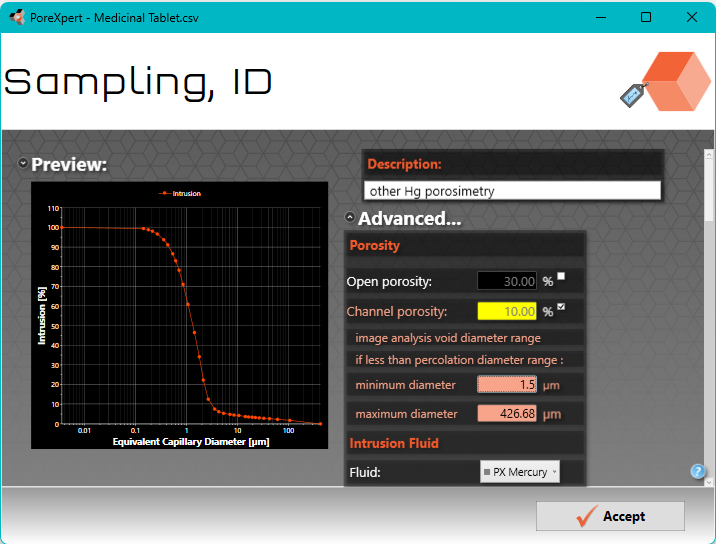
Figure CP 2
Having clicked the Accept button, you will probably be taken to the Curve Fitting window below.
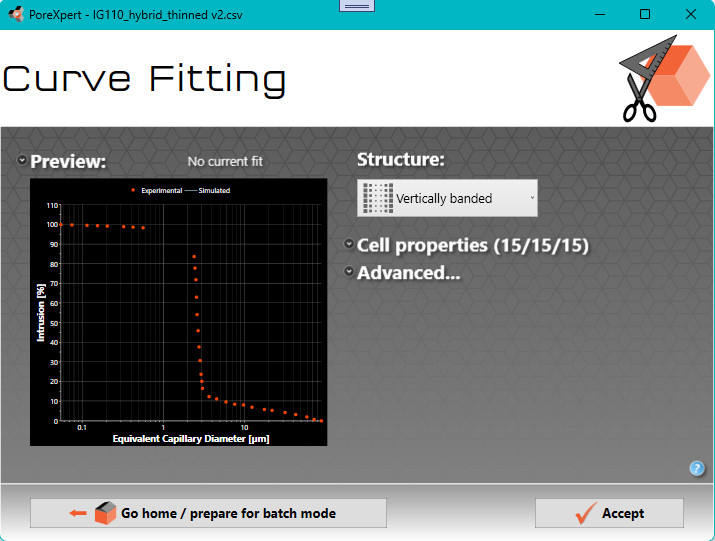
Figure CP 3
Alternatively, if there has been an initial problem with any of the input parameters, you will be taken to a window showing only the sampling operation, as shown below.
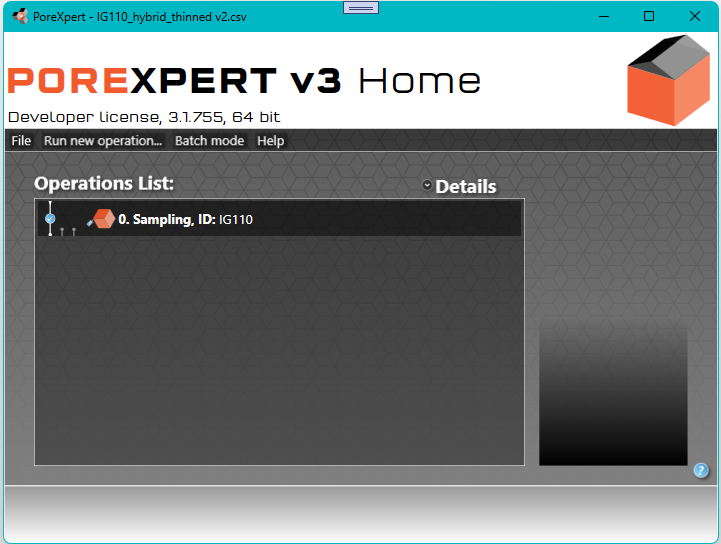
Figure CP 4
In this case, click Run new operation... | Initialisation | Fitting to access the Curve Fitting screen shown above in Figure CP 3.
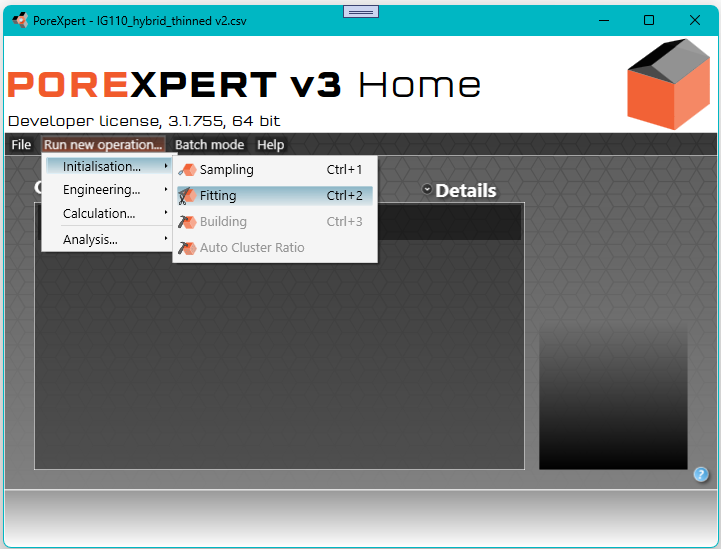
Figure CP 5
At this point it is likely that you will want to save the additional details of your sample datafile (i.e. channel porosity and minimum and maximum diameter of the image analysis range) so that you do not have to type them in every time you start a modelling session. To save them, on the Curve Fitting screen click the Go home / prepare for batch mode button

Figure CP 6
That will take you back to the Operations List screen shown above. Then click File | Save as ... PoreXpert file :
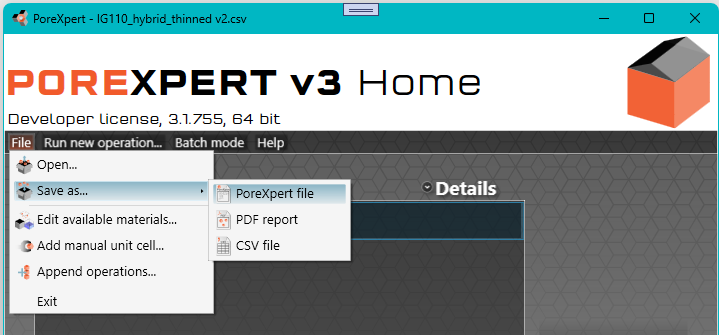
Figure CP 7
You will then arrive at a Save as screen with options below analogous to those shown here :
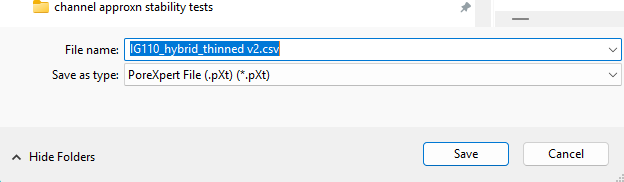
Figure CP 8
You are given a default file name, as shown, but if you use that it is important to remove the file type extension, in this case .csv, to avoid confusion. If you wish to be able to read the datafile, which is written in eXtended Markup Language (XML), then on the Save as type dropdown menu choose Uncompressed PoreXpert File:

Figure CP 9
Then, for your next modelling session, you can just load the .pXt or .poreXpert file at the outset. If you want to check its details, just double-click the datafile on the Operations list screen, Figure CP 4.
On the Curve Fitting screen, Figure CP 3, first click on the click on the small downward arrow next to the Cell properties label. The numbers in brackets show the number of pores in the x, y and z Cartesian directions, by default 15, 15 and 15. So by default there are up to 15 x 15 x 15 = 3375 pores, and as each pore can be connected to up to 3 throats in the positive Cartesian directions (and another three in the negative direction), there are up to 10125 throats. That may seem a lot, but nevertheless is too few to make a realistic estimate of the network capacity, which is related to the absolute permeability of the structure. Leave the setting as the default 15/15/15 unit cell size if you are just trying out the fitting and building algorithms, but if you want to obtain network capacity estimates, increase it to at least 20 x 20 x 20. Note that only cubic unit cells are fully supported in the current release, rather than cuboidal unit cells. For these instructions, we will leave the unit cell size at the default 15 x 15 x 15.
Now click the downward arrow next to Cell properties to minimise that dropdown menu. Then click the small downward arrow next to Advanced... to reveal the Advanced options. Scroll down to the bottom of the list of options :

Figure CP 10.
The screen shows you two defaults: that the channel porosity is Averaged over top 9 layers, and Channel approximation type 2, namely surface contacting throats and pores. If the channel porosity is averaged over 4, 9 or 16 layers, then the effect can later be visualised as a 2x2, 3x3 or 4x4 grid surface (see Channel porosity visualisation).
With respect to the Approximation type, you need to consider what the image analysis of your electron micrograph is actually telling you about the porosity of the sample. The observed surface of a PoreXpert unit cell is always represented as the xy plane at maximum z, i.e. the top surface of the default unit cell image.
There are four options to choose from:
1. surface-contacting throats;
2. surface-contacting throats and pores (the default);
3. surface-contacting throats, pores and neighboring aligned throats;
4. all throats normal to the surface (i.e. in the -z direction relative to the observed (top) surface in the xy plane), and the pores of these throats.
All these approximations control how the PoreXpert unit cell represents your porous material. The appropriate level of approximation will depend on the smoothness of the surface viewed by electron microscopy (e.g. whether or not polished) and the nature of the material itself. The approximations relate to dimensions of the PoreXpert unit cell, not to the dimensions of your material - so you must judge how to map one onto the other. The following diagram helps to explain them further.

Figure CP 11. The four levels of approximation relating observation and image analysis of your micrograph to the PoreXpert unit cell
In order to make calculations tractable, the features within a PoreXpert unit cell are set on a Cartesian grid which is equally spaced on each Cartesian (x,y and z) direction. No pores can overlap, so the spacing between pores, i.e. the pore row spacing, is always larger than the largest pore that you model. In this example, the largest pore modelled is 89.14 μm, Figure CP 2. So to choose the appropriate approximation, look at your electron micrograph, and map the pore row spacing onto it. Then ask yourself how far you are looking into the interior of the sample relative to that pore row spacing. The default is that you can see the surface throats (which are always visible), and the surface-connected pores behind them. Clearly when first choosing the approximation level, you have not yet generated a unit cell, so the choice is iterative - first use the default, generate the unit cell as exemplified below in Figure CP 16, look at the pore row spacing, and then reconsider whether the default approximation is the correct one.
The standard porosity is that based on pycnometry, or the porosity judged by mercury porosimetry, so is based on the entire accessible, or open, porosity. However, channel porosity is based on just the top surface of the unit cell. Normally, however, that is an unrepresentatively small part of the unit cell, especially for smaller unit cells such as the default 15 x 15 x15 array. So the channel porosity is calculated as an average over more than just the surface layer. The default is the top 9 layers. It is important to consider whether 9 layers gives a representation of the porosity of the whole unit cell. If, for example, a horizontally banded structure type is being used on a 15 x 15 x 15 grid, then 9 layers would not give a representative sampling of the whole structure. However, for the default vertically banded structure, 9 layers from 15 is a reasonable representation, as the layers do not fundamentally vary in the -z direction. The number of layers can be varied up to the maximum number of layers within the unit cell, but for visualisation purposes, it must be the square of an integer - i.e. 1, 4 9, 16 or 25, as will be explained.
Beware of choosing approximation 1 unless you have a perfectly smooth surface which genuinely only shows the emerging surface throats, such that you do not have any additional information to supply. Approximation 1 gives very little information to the simplex, and so its answers for different stochastic generations, unit cell sizes and number of layers for the porosity averaging will vary widely, to the extent that there may be no indication of the correct open porosity, and hence of other properties such as permeability. As you choose higher approximation type numbers, larger cell sizes, and larger number of layers over which to average the porosity, then simplex results for the different stochastic generations and unit cell sizes will converge much more closely onto what PoreXpert calculates as the correct open porosity. Whatever approximation type and number of averaging layers you choose, it is essential to compare different stochastic generations to check that you have a stably convergent answer.
You may then ask why approximation 1 is allowed. This is the closest approximation to porometry, but at the time of writing of this Help edition, we have not tried it on actual porometry samples.
If you understand how to generate the unit cell and find the pore row spacing, then you can now proceed to the Channel Porosity Visualisation page.
If not, then you can work through the detail in the Simplex Fitting page, or follow the summary screenshots below which guide you through how to do that for the IG110 graphite example.
Fitting a sample based on its percolation characteristic and channel porosity
To fit the percolation curve of the IG110 sample, click Accept on the Curve fitting screen, Figure CP 10. After fitting the percolation characteristic and porosity, you will be returned to the Operations List screen, which will show the distance from the simulated and experimental percolation curves. The example shown below shows a distance of 2.02%, which is not particularly good - you should aim for fits considerably better than (lower than) 2%. Your results are likely to be different from those shown in Figure CP 12 - PoreXpert improves its fits as it becomes more experienced with a sample, provided the Learning option is switched on, which it is by default.

Figure CP 12.
Double-Clicking on Operation 1. Curve fitting, Figure CP 12, reveals the parameters, as shown below. When in channel porosity mode, the most important result is usually the estimate of open porosity, which takes into account void features not visible from the surface, such as cross-links between channels and pores larger than those visible at the surface. In this case it can be seen that the porosity estimate is 4.62%, against a channel porosity of 2.67%. Although the open porosity estimate is comfortingly larger than the channel porosity, in fact it is completely the wrong answer scientifically, as the actual open porosity is around 20%. There are three reasons for the incorrect result: (i) the unit cell is too small, (ii) it has the wrong structure type, and (iii) most importantly there should be a maximum range to the image analysis investigation, not just a minimum diameter. The incorrect answer emphasises the need to input all parameters very carefully, and follow all procedures to optimize the void network simulation. The actual validation of the IG110 has been published as a poster in May 2025, available to download from https://www.porexpert.com/downloads/software-applications/ .

Figure CP 13
For the purposes of these instructions, we will stay with the current results. The next stage is to Build the unit cell:

Figure CP 14
Left-clicking on the resulting operation 2. Unit Cell Building gives the choice of two view modes :

Figure CP 15
Left-clicking on 3D properties view displays the unit cell:

Figure CP 16
Now you can proceed to the Channel Porosity Visualisation page.