The automated PDF reporting operation will generate a PDF report for all of the operations currently in the operation list, following the operation list order. Click File | Save as... | pdf report from the PoreXpert v3 Home (operations list:) screen.
The cover page has a PoreXpert logo at the top and below the logo you will find some key information about the report such as the sample name when the report was generated and the version of PoreXpert used to generate the report and how many pages are in the report. The next figure shows the PDF report cover page for a sandstone sample.

PoreXpert PDF report cover page
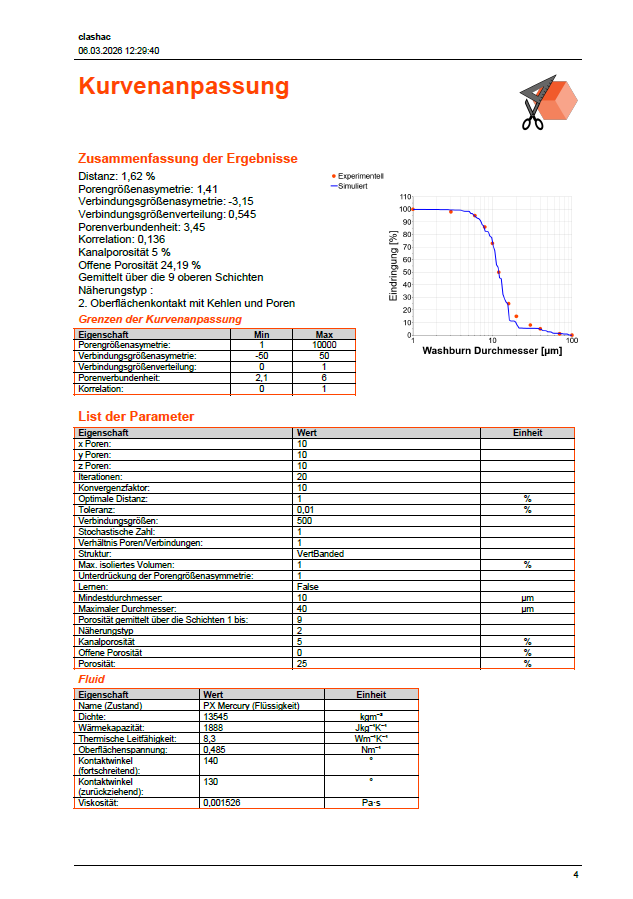
PDF reports are automatically generated according to the language settings of the software. If you want to create a report in, say, both English and your native language if that is German, French, Spanish, Italian or Portuguese, then click from the PoreXpert v3 Home screen click File | Save as.. | pdf report to generate a report in English. The on the same screen, click Help | About PoreXpert. At the bottom right of the About screen, choose a different language, click the Change button just to the right of it, then click Go home. Now in the changed language, click the equivalent of File | Save as.. | pdf report . An example of page 4 of a pdf report of a channel porosity calculation in German is shown below.
 If you encounter a problem reporting very large sessions, please report the issue..
PoreXpert PDF Summary Page
The second page of a PDF report is the summary page which details all of the operations in the operations list and provides key results from any of the calculations and analyses performed using PoreXpert. The next figure shows the summary page from the sandstone sample.

PoreXpert PDF report summary page
The subsequent topics in this help documentation detail the information provided by the PDF reporting feature for the other operations in the list and shows the user what each operation report will look like.